Find a cache
This page shows you how to get around the app, pick a cache on the map and get to it. It is for any player; at the end you stand at the cache with its sheet open, ready to log.
Get around the app
| What | On a phone (bottom bar) | On a computer (left rail) |
|---|---|---|
| The map | Map | Map |
| The closest caches | Nearby | Nearby |
| Log the open cache | Log (the centre button) | ✓ Log a find in the cache sheet |
| Hide a cache | Hide (the centre button) | + Hide a cache in the top bar |
| Recent finds | Activity | Activity |
| Everything else | More | its own entry |
More lists the rest, in the order of the left rail: You (your profile), Messages, Ranks, Shack, Offline and Settings, plus Admin for the sysop, and last Manual, which opens this manual in a new tab. A dot marks one that needs you: a new message, or a callsign still to verify. The same dot shows on More and on the left rail.
The centre button shows Log while a cache is open and Hide otherwise; it brings the cache's log form into view. On a cache you own, or one that is archived or disabled, it shows Note and says why: such a cache takes notes, not finds. On a computer, Manual sits at the foot of the left rail. A tablet shows the left rail as icons only: rest on an icon, or move to it with the keyboard, to see its name. Rest the pointer on a control, or move to it with the keyboard, to see a one-line hint of what it does; the small i beside a term explains it on a tap. The bell in the top bar opens your alerts (Alerts and the watchlist).
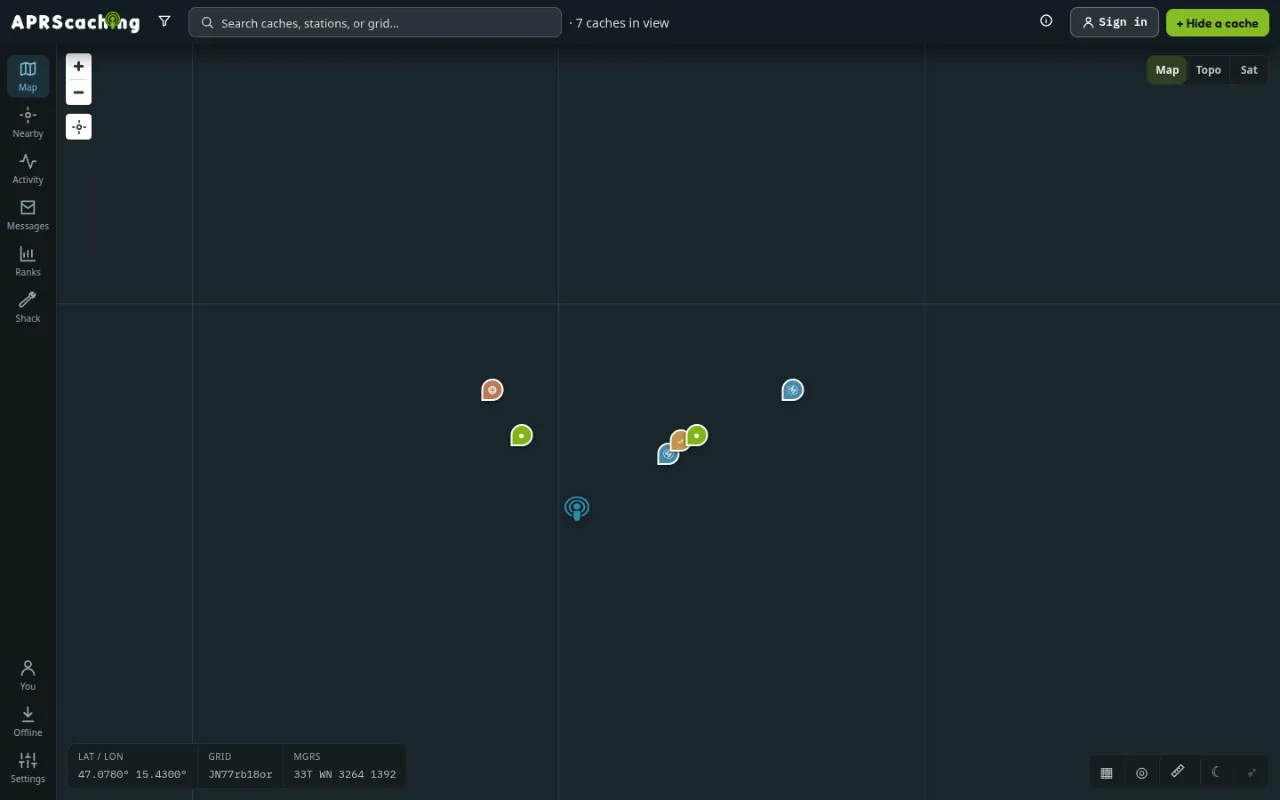
Search the map
- Search: type a cache code (
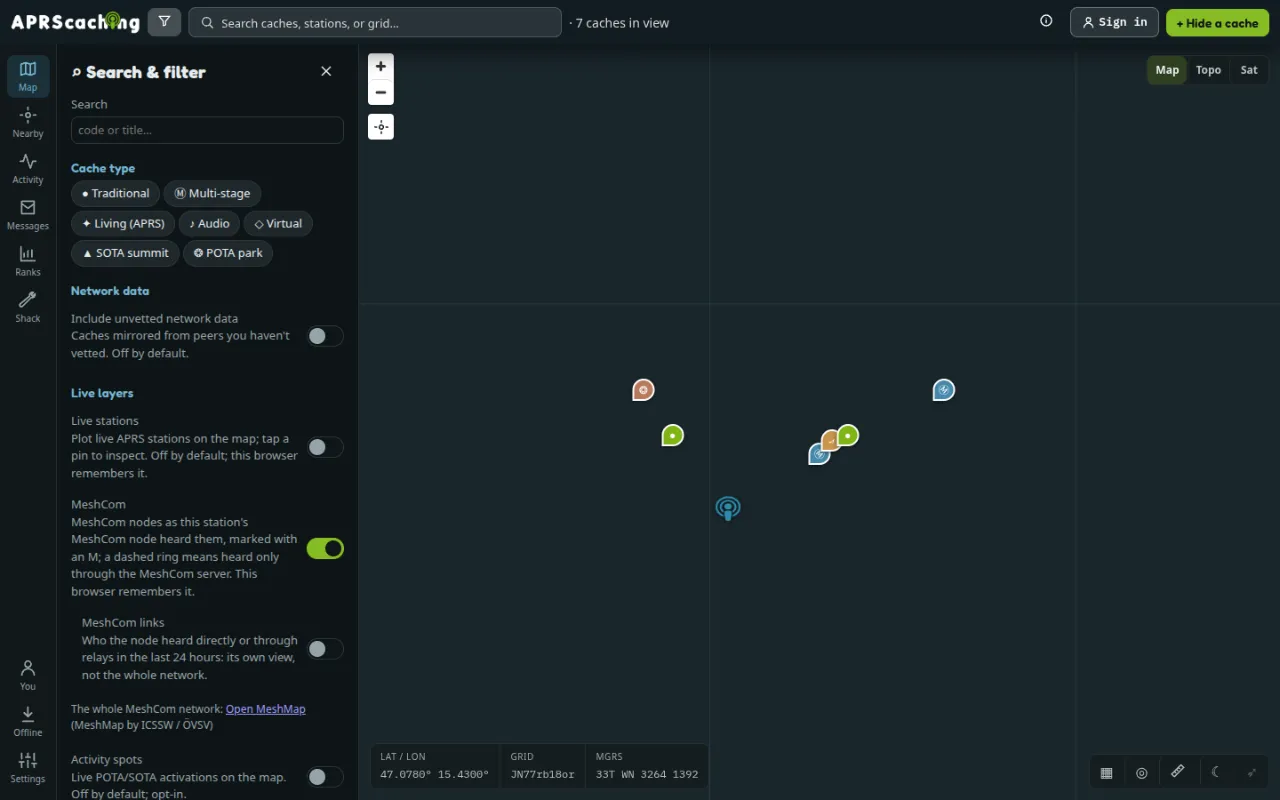
AC-1234), a title, a callsign or a grid square (JN76) in the search box in the top bar. On a phone, tap the magnifier in the top bar to open the search box. Pick a result to open it. - Filter: tap the funnel icon. Search & filter opens.
- Cache type shows only the types you pick.
- Country and tags narrows the map to one country, to the caches with any of the tags you pick, or both. The choices are the countries and tags of the caches in view. Caches from other instances carry neither.
- Include unvetted network data adds caches from instances your sysop has not vetted yet.
- Live layers adds Live stations (APRS stations heard now), MeshCom nodes and Activity spots (live POTA and SOTA activations).
- Basemap: pick Map, Topo or Sat.
- Map tools: a grid-square overlay, range rings, a ruler for distance and bearing, the day and night line, and the bearing from your home locator to the open cache.
The corner of the map shows the position under the cursor as latitude and longitude, grid square and MGRS.
List the closest caches
Tap Nearby. The list shows the caches and stations closest to you, nearest first, with distance and direction. The line above it says what it measures from:
- from you: the phone has your location, from the locate button on the map or a reading in the last five minutes. When you have moved the map away, the list still shows what is within 10 km of you.
-
from map centre: the app has no location yet. Tap Use my location to measure from you, or move the map to plan somewhere else.
-
Caches and Stations narrow the list.
- For adoption lists caches whose owners are handing them on.
Open the cache sheet
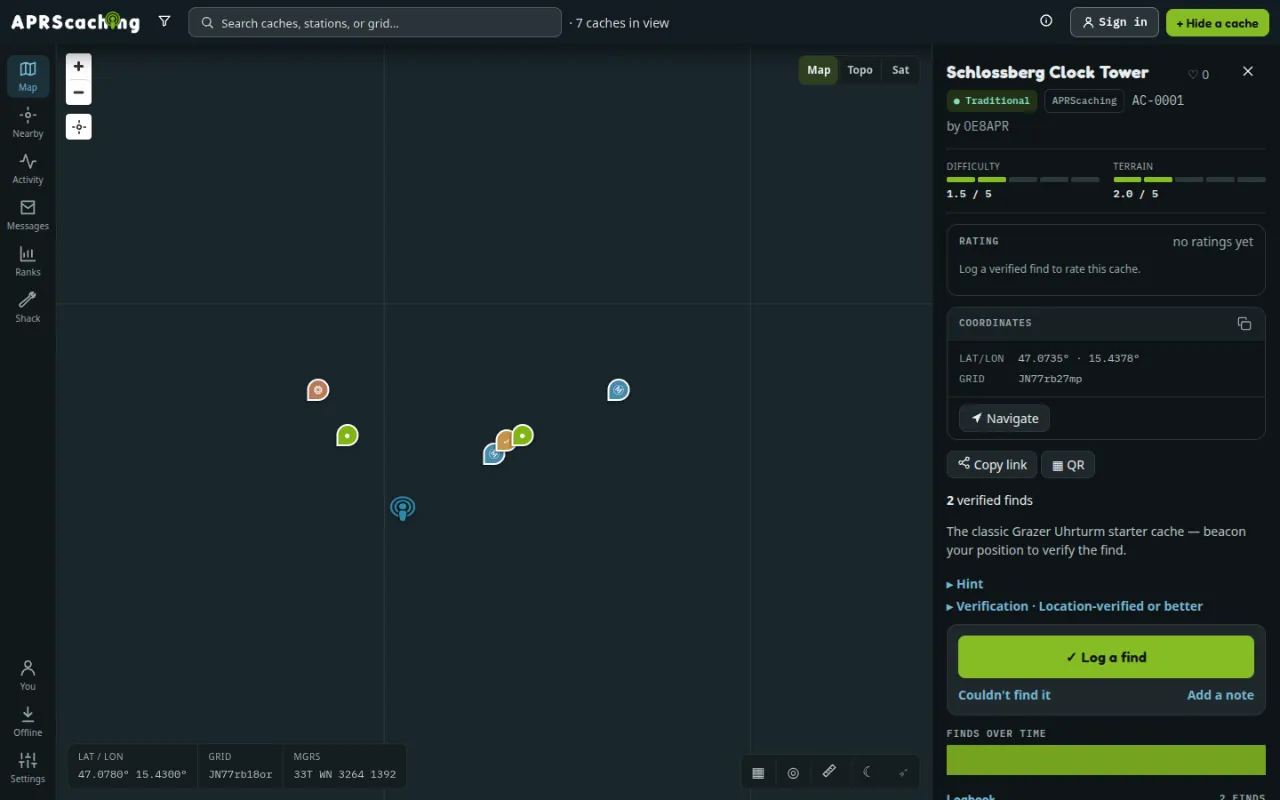
Tap a marker, a row in Nearby, or a search result. Zoomed out, caches close together share one round marker with their number: tap it to zoom in until they part. The map moves the open cache into view beside its sheet, above it on a phone. The cache sheet shows:
- the title, the type, where the cache comes from (APRScaching, or imported from a programme such as SOTA), the code and the owner;
- Difficulty and Terrain, from 1 to 5;
- how far away the cache is, once your location is known;
- Rating, the description, the Hint (tap to show it) and any photos;
- Verification: the badge a find needs here to count as verified;
- Coordinates with a copy button, the grid square, Find and Navigate;
- Copy link and ▦ QR to share the cache;
- the Logbook: everyone's finds, did-not-finds and notes.
Get to the cache
Drive or ride there with a maps app, then walk the last stretch with Find.
- Tap Navigate, then Maps app (your phone's own), Google, Apple or OpenStreetMap. Google and Apple open with a route to the cache; the others show the cache on their map.
- Near the cache, tap Find. A compass fills the screen: the arrow points at the cache, with the distance and the GPS accuracy below it. The screen stays on while it is open, and it works without a connection.
- When the view says search here, you are within GPS accuracy of the pin: put the phone down and look.
- Found it? Tap ✓ Log a find in the same view.
The arrow follows the phone's compass. On iPhone, tap Use the compass once to allow it. A phone without a compass turns the arrow the way you walk, after a few steps. If the view asks, move the phone in a figure-eight to calibrate it, away from cars and metal.
The "you're near" prompt
When you come within 150 m of a cache, the app shows a banner: You're near AC-1234, with Log it and ✕ to dismiss. Log it opens the cache sheet. Each cache prompts once a session, and a dismissed one stays quiet.
Two things can tell the app you are near:
- Your phone. Whenever the app has your location (the locate button on the map, Nearby or Find), it checks the caches on the map. The check runs on the phone: your location is not sent anywhere for it.
- Your radio. When this instance hears your radio's APRS position, over the air or over the internet, it
checks for you and the app shows the banner. The beacon must carry the callsign you are signed in with, with
any SSID: signed in as
OE8APR, a beacon fromOE8APR-7prompts you.
The app must be open for either. Your own caches, archived or disabled ones, and caches from other instances do not prompt.
A message to your radio
Hunting without the app? The instance can send your radio an APRS message instead, from its service call:
The message names the nearest cache, its distance and its direction from you. With more caches in range it
adds the count, such as +2 more. Reply FOUND AC-1234 to log the find, as in
Log from your radio. Your station gets the message the way the instance
heard it: on APRS, or as a MeshCom direct message.
The message is off until you switch it on. Do one of these:
- Settings → Near-cache radio message;
- send
NEAR ONfrom your radio to the service call. ANEAR ONthat arrives only over the internet waits under You → Logs sent over the air for you to confirm.NEAR OFFswitches it off at once.
You get a message only when:
- your callsign is verified, and the beacon is from your callsign, with any SSID;
- you move slower than 10 km/h, on foot rather than driving past;
- the cache is active, and you have neither found it nor own it.
You get one message per cache a day, and at most four an hour.
Caches from other instances
Your instance can show caches from other instances in its network, and search finds them too. Their sheet
names the home instance beside the code, since two instances can each have an AC-0001, and shows the type,
difficulty, terrain, owner and coordinates. Navigate hands the coordinates to a maps app. You cannot log
them here: Open AC-0001 on its instance takes you to the cache's page there, where you log your find. It
shows here once that instance publishes it.
Share caches and views
- Copy link copies a link to the cache. The link opens the map on the cache, signed in or not.
- ▦ QR shows a QR code that opens the cache. download SVG saves it for printing: a visitor who scans it at the site lands on the cache's page.
- Search & filter → Share this view copies a link to the current map, with its layers and filters.
Hunt without signal
Before a trip into an area without mobile data, make an offline pack. Hunt without signal shows how.
Next
- Hunting without signal: prepare a hunt where the phone has no data.
- Log a find: log what happened at the cache.