Rig control & weather
This page shows you how to tune your transceiver from the browser and how to send your weather station's readings to the instance. You need Chrome or Edge on a computer for the rig, and a signed-in account for the weather station.
CAT rig control
Shack → Rig control tunes a radio over USB (CAT) with no companion software. It speaks three radio families:
- Kenwood / modern Yaesu (ASCII): the Kenwood TS series, and modern Yaesu radios such as the FT-991 and FTDX that speak Kenwood CAT.
- Icom (CI-V): with the radio's CI-V address.
- Yaesu classic (FT-817/857/897): the older binary protocol.
Radios outside these families cannot be tuned from the Shack.
Rig control only sets the frequency and mode: it never keys the transmitter. Tuning is receive-side and needs no verified callsign. Keying a transmitter is transmitting, which is gated on callsign control-verification.
Tune your radio
- Open Shack → Rig control.
- Choose the Radio family.
- Set the Baud to the rate in your radio's menu. The default follows the family: 38400 for Kenwood, 19200 for Icom, 4800 for Yaesu classic.
- For an Icom, enter the CI-V addr in hex (
94by default). - Select Connect rig and pick the radio's port. The app shows Rig connected.
- Select 144.800 (EU APRS) or 144.390 (NA APRS), or type a frequency in MHz and select Tune.
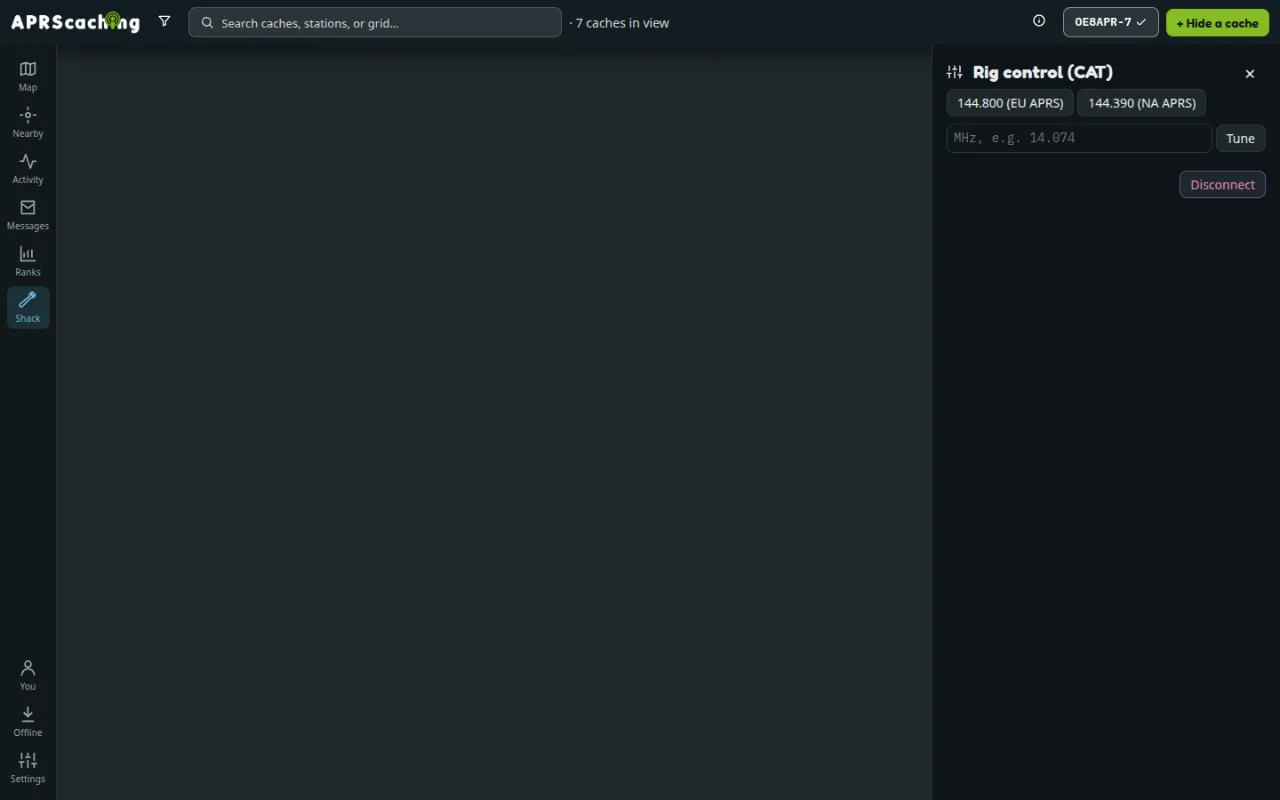
The app confirms each change with Tuned to … MHz. While the rig is connected, a spot on the live map offers Tune rig to … MHz. Disconnect releases the port.
Weather stations
You can send your own personal weather station (PWS) to the instance. Its readings show on the map and on the station's page, with graphs. Pushing data in needs no amateur licence.
Add your weather station
Each weather station is one of your stations, with its own callsign and its own push key.
- Open Settings → My stations and select Add a weather station. It fills in your callsign with the
-13weather SSID and the Weather role. - Enter the station's coordinates, or leave them blank to place it at the centre of your home locator's 6-character square, about 5 by 2.5 km, however precise the locator (Settings → Profile).
- Select Add station. The station's URLs show at once.
- Copy the Ecowitt — custom server path or the Weather Underground — Rapidfire URL, and enter it in your station's configuration: as a custom server with the Ecowitt protocol, or as the Weather Underground upload URL.
The readings appear under the station's callsign at its coordinates. A weather-only station needs a callsign on your account, not a verified one. Open the station under My stations to see Last reading; Re-issue key makes new URLs and stops the old ones, and Remove revokes the key.
More weather stations
A second station, such as one on a summit, is another station under My stations with the Weather
role, its own SSID (such as OE8APR-14) and its coordinates. Any station gains a push key when you give it the
Weather role and select Enable weather push. Roles beyond weather need a
verified callsign.
A station on USB
A Peet Bros or Ultimeter station on USB can report straight from the browser. Open the station under Settings → My stations, and under Browser-direct (Web Serial) choose the Baud and select Connect station. The browser posts a reading once a minute while the page is open.
Beacon or relay your weather
Under Transmit (optional) on each weather station, two switches send its readings further, under the station's callsign. Both need the station's callsign verified and are off by default:
- Beacon to APRS-IS sends your weather as a standard APRS report, at most once every five minutes.
- Relay to CWOP feeds your readings to NOAA's Citizen Weather Observer Program (CWOP), where the instance's sysop has set up a CWOP server (Configuration).
Weather is observational: it enriches the map and station pages, and never changes how a find is verified.
Next
- On-air etiquette and rules: before you transmit.
- The live map: stations and spots to tune to.